Selling tables
How to create a table for groups, what the person booking sees and what happens at the gate.
A table is a booking for a group: the person booking picks how many people, within the limits you set, and pays for the whole group. Everyone at the table has their own entry ticket. What you include, two bottles for example, is fixed per table.
The other features for nights out and events are on Festivio for organizers.
Create a table
- Open the event and choose Items in the side menu.
- Press Add table.
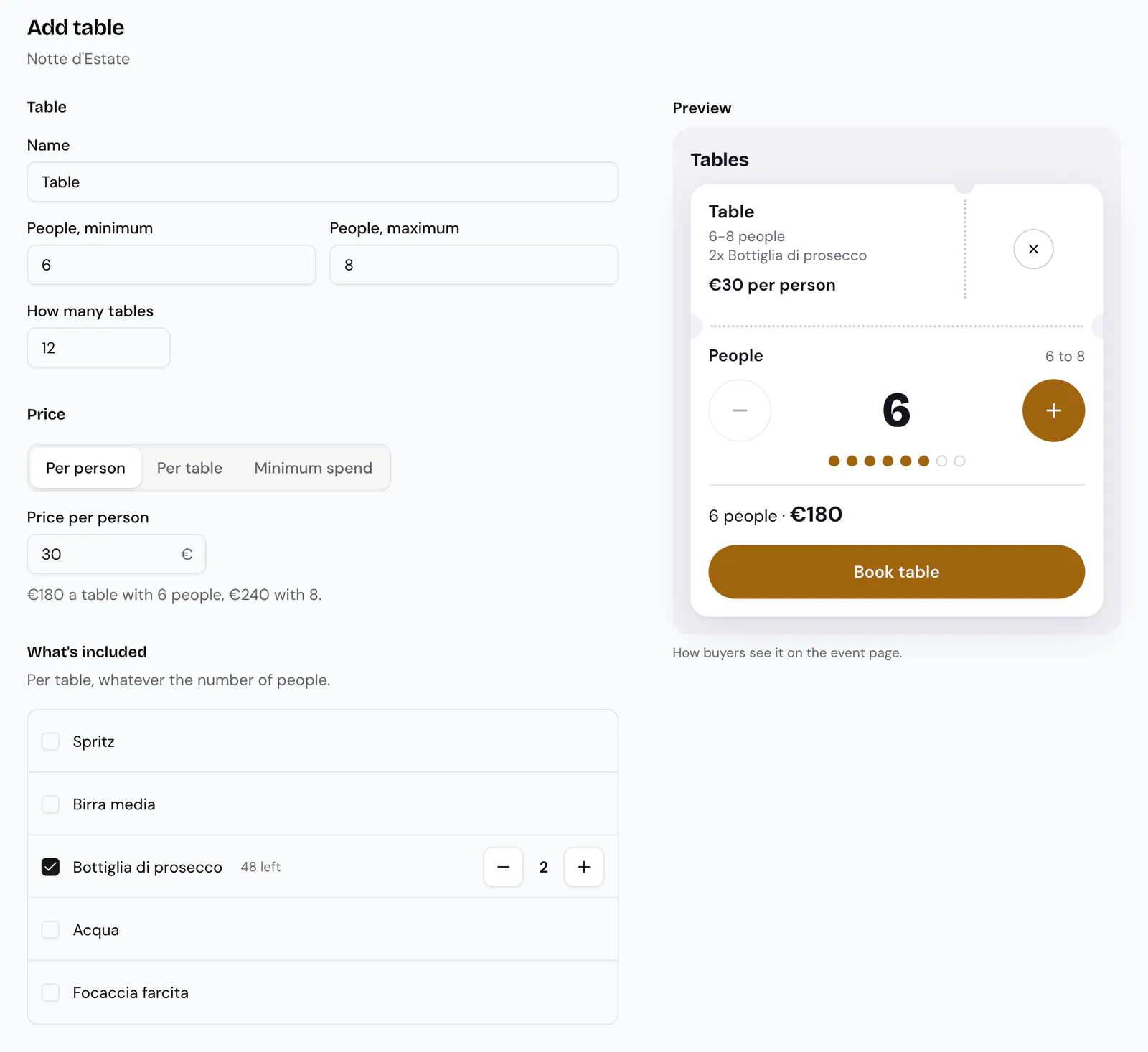
- Fill in Name, for example "Table" or "VIP".
- In People, minimum and People, maximum, enter how many people the table can have, from 1 to 50.
- In How many tables, enter how many tables of this kind you sell.
- In Price, choose Per person, Per table or Minimum spend and enter the price.
- With Per table or Minimum spend, set the Deposit if you want only part of it paid online (see below).
- In What's included, tick the drinks and extras that come with the table and how many per table. With Minimum spend this section is not there: the group spends against the minimum.
- If needed, set Sale start date, Sale end date and Additional details (one per line). With Visible off, the table does not appear on the event page.
- Press Add table.
Next to the form, Preview shows the table as buyers see it, with the price changing as the number of people changes.
Price per person or per table
| Price | What the person booking pays |
|---|---|
| Per person | The price times the number of people. At 30 € per person, a table for 6 costs 180 € and a table for 8 costs 240 €. |
| Per table | The full price, whatever the number of people. |
| Minimum spend | What the table must spend, whatever the number of people. Online they pay the deposit, which becomes credit at the table. |
Under the price, Festivio shows what the buyer pays for the smallest table and what you receive.
What you include does not change with the number of people: two bottles stay two, for 6 or for 8. An included item needs enough stock for at least one table, as with bundles.
Deposit, balance and reward
With Minimum spend there is always a deposit; with Per table you turn it on with Pay part when booking. Per person has no deposit.
- Online deposit: a Percentage of the price (50 % to start) or a fixed Amount, never above the price. The person booking pays only the deposit online. With a 400 € minimum spend and 50 %, they pay 200 € and have 200 € of credit at the table; they spend the rest during the night.
- How the deposit is used, with Minimum spend only. Straight away: the first drinks are paid from the deposit. At the end of the night: drinks are paid as they are ordered until the table has paid its minimum spend, then the deposit covers them. With a 400 € minimum spend and a 200 € deposit, a 60 € order is paid in full; once 400 € has been paid, the 200 € deposit covers the drinks after that. Gift credit and the reward are used like the deposit. The group's final bill is the same either way. The person booking reads on the table and at checkout that the deposit comes off at the end of the night. Bookings already made keep the way they were booked with.
- Reward for paying the whole table now: 1 to 50 %. It applies only when one person pays the whole table at booking: at checkout they choose between Deposit and All now. When the group splits, there is no reward. With a minimum spend the reward is extra credit (pay 400 €, get 440 € to spend); with Per table it is a discount on the full price.
- Balance online before the night: whoever booked can pay the rest from their ticket. With Balance by you choose up to how many hours before the start; after that, the rest is paid at the event.
The deposit follows the event's refund policy, which the person booking reads before paying. Unused credit is not refunded.
The table's entry ticket
Each table has its own entry ticket, which Festivio creates with the table and names "Entry" followed by the table's name, for example Entry VIP. It is not sold on its own, it does not appear on the event page or in the items list, and it is renamed when you rename the table. You find it in orders, reports and the scan history.
In the items list
The table appears under Tickets, with a line like 6-8 people · 12 tables · 4 booked; a minimum spend adds, for example, Minimum spend 400 € · deposit 200 €. The Edit icon opens the Edit table page, with the same fields.
What the person booking sees
On the event page, tables have their own Tables section. Each table shows the number of people, what is included and the price, per person or per table.
The person booking picks the number of people with the plus and minus buttons, starting from the minimum, and sees the total update. Each order holds one table: two tables take two orders.
Tables are sold online only. The cash desk and the gate stations do not sell them.
If the event asks for a name on every ticket, only the name of the person booking is required at checkout; the other seats can be left without a name. If the event asks for age confirmation, the person booking confirms it once for the whole group.
After paying, the person who booked has all the table's tickets in their account, one per person.
Split payment
With The group splits the bill on (The group splits the deposit when there is a deposit), the person booking chooses in Pay for how many people to pay for, from one to the whole table. The other seats stay booked for the table and are paid through the group link: from the ticket, Send the link to the group.
Whoever opens the link sees the table and the free seats. They sign in, write their name and pay one or more seats, or take for free a seat someone has already paid. Everyone gets their own ticket with their own QR. With a deposit, the group splits the deposit: 200 € for 8 people is 25 € per person.
If the event passes the service fee on to buyers, the button already shows the total, with the fee under it: Pay 26.25 €, including a 1.25 € service fee. The same goes for Pay the missing seats and the online balance: the amount on the button is what is charged.
Time to pay sets when the seats must be paid, never later than 3 hours before the start. The person who booked gets a reminder 24 hours and 3 hours before the deadline, and can pay the missing seats with I'll pay the missing seats. At the deadline:
- with Per person, unpaid seats above the minimum are released and go back on sale;
- otherwise, or if seats are missing to reach the minimum, the table comes to you: you get a notification and on the Tables page you choose Confirm anyway (the missing seats are paid at the event), Give more time or Cancel and refund (everyone who paid gets everything back). If you don't choose within 24 hours, the table is confirmed.
Unpaid seats don't get in: at the scanner the table shows how many are missing.
At the gate
When the scanner reads the QR of the person who booked, it shows the table, the name of the person who booked it and how many of the group are already in. Below are the table's tickets still to be used: select the ones for the people who are there and press Confirm, as with any pass. Whoever arrives later gets in with the same QR.
To try it before opening, create a test order with a table: in the test order window, after adding the table, choose how many people. See Test orders and test mode.
At the bar: drinks on the table
With a minimum spend or a deposit, the till has At the table. Pick the table from tonight's list or scan a guest's QR, then ring up drinks as usual: with the deposit used Straight away the table's credit pays first, anything above it is paid on the spot in cash or with an external POS. Tickets do not go on a table: they do not show in this view. At the top you see how much the table has spent, out of how much, and the credit left. With the deposit used At the end of the night, a line under it says how much is left before the credit pays (Deposit comes off at the end · credit after 140 € more): until then each order is paid in full. The Tables page shows the same line, and at the door the scanner adds deposit comes off at the end. A Per table table with a deposit has no credit: it is a price paid in two parts, and the till shows what is paid and what is left, with Pay balance and Close table; the group's drinks are ordinary orders.
If the item carries the service fee, at the table it applies only to the part the credit does not cover: with 80 € of credit left, a 120 € bottle pays the fee on the 40 € taken now. An order the credit covers carries no fee, and the fee never uses up credit or counts toward the minimum spend. With the deposit used At the end of the night, drinks paid before the table reaches its minimum carry the fee as at an ordinary till.
Pay balance opens the same window as Collect on the Tables page: the amount starts at what is left to pay, you can enter a different one, and anything above the minimum spend becomes credit. If the connection drops and you press again, the payment is not recorded twice. Under the table at the top is the staff note, when there is one. Close table takes what is missing to reach the minimum spend; unused credit is not refunded. Mark as settled, for a balance taken outside Festivio, is shown only to people who manage the event.
The Tables page
In the event menu, under Event day, Tables shows every booking: who booked, how many paid and how many are in, and for minimum-spend tables what was paid, spent and the credit. It updates by itself during the night. A booking opens in a panel, from the bottom on a phone and from the side on a computer, split into the account (the minimum spend or the price), People, Activity and Table. On a table To decide the panel shows the decision first: collecting comes after.
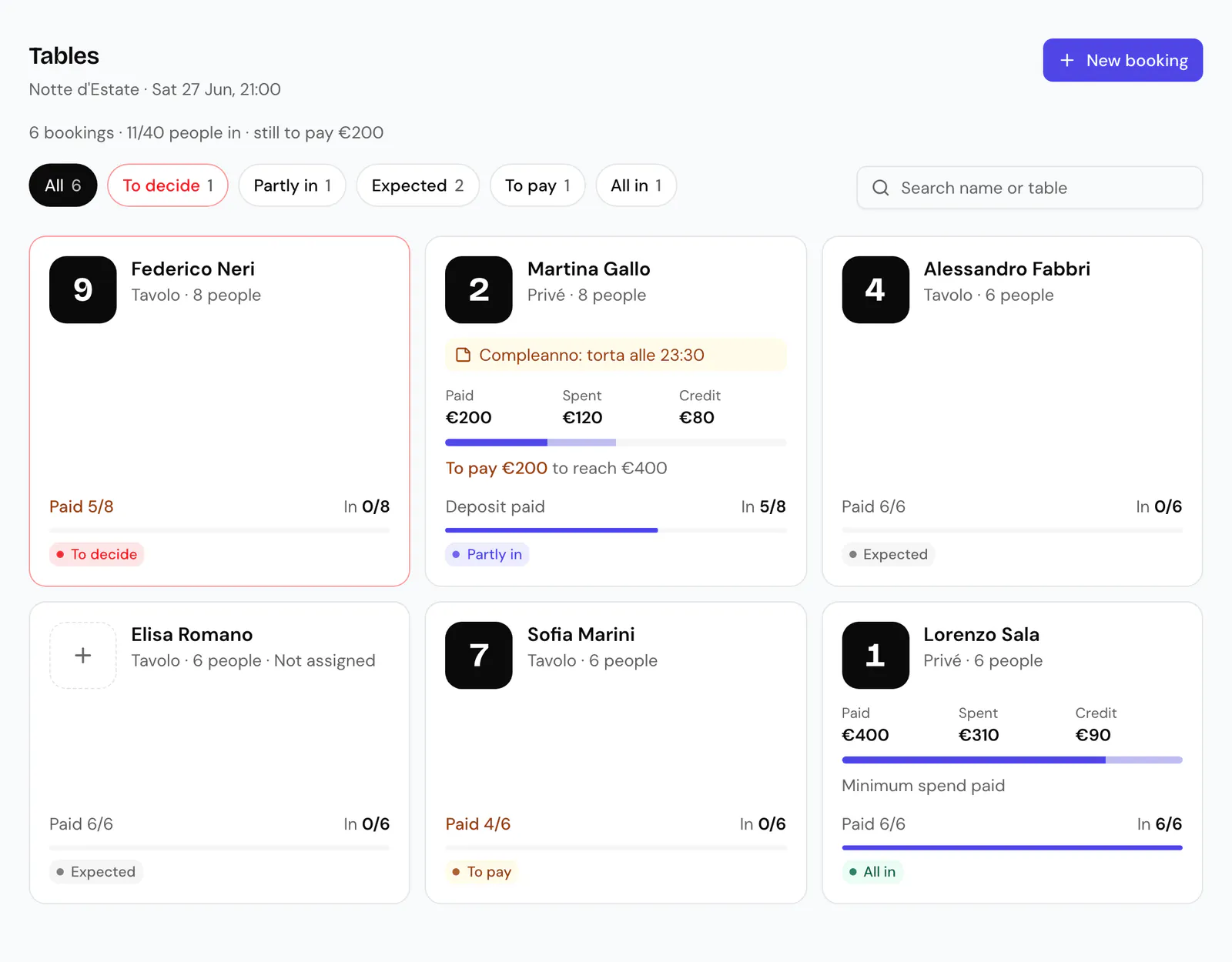
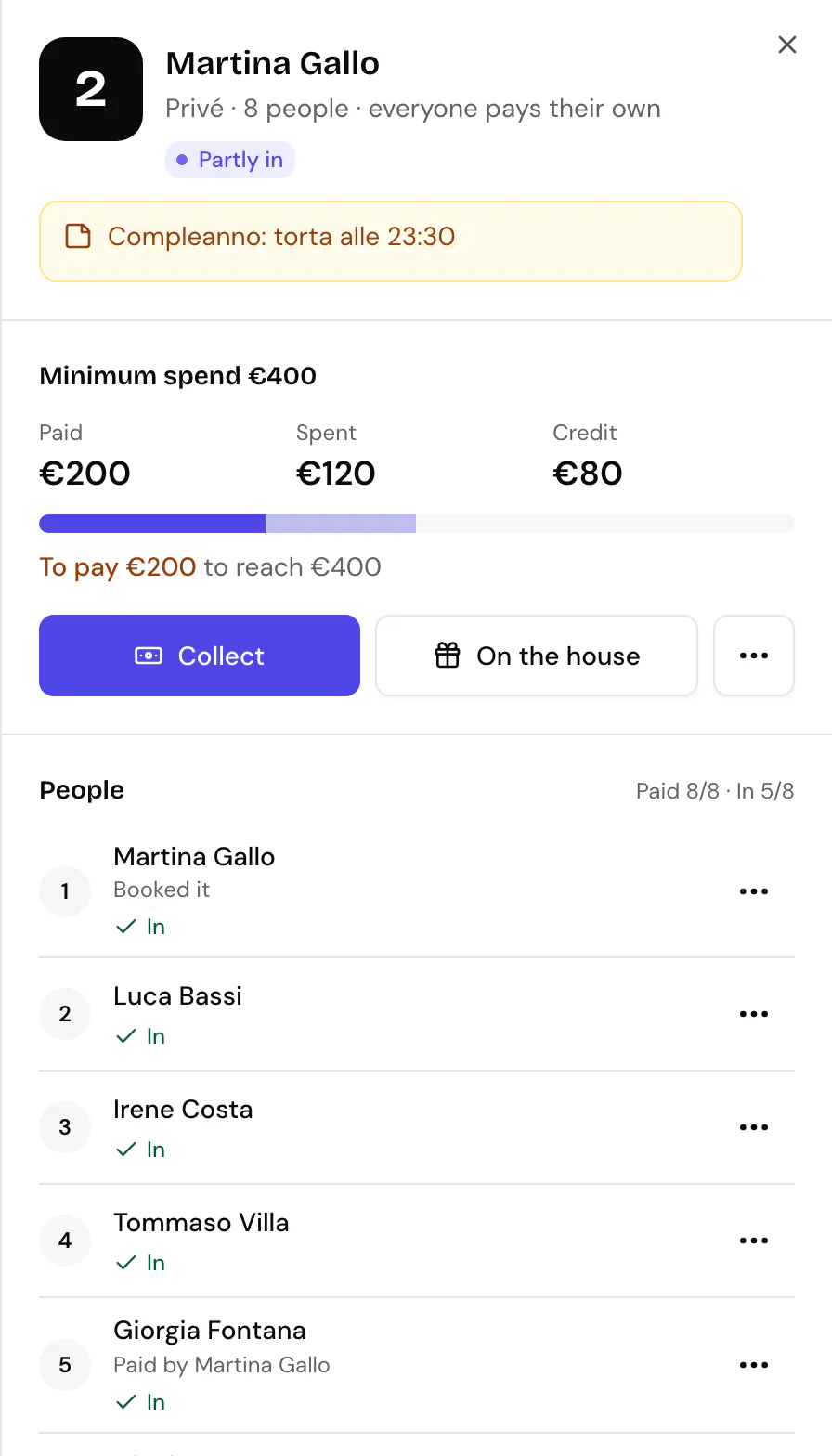
Collecting, On the house, changing the minimum spend, the people and the note need permission to edit orders. Refunding a seat and cancelling with a refund need permission to refund.
New booking
New booking, at the top of the page, books a table by hand for a person, for example a reserved table that is not for sale. Pick the table from all the event's tables, hidden or not for sale ones too, with how many are left; then the people, from the table's minimum to its maximum (past it, with a confirmation), the email of who is booking and, if you like, their name.
Nothing is paid online. With a minimum spend, the minimum spend is left to pay at the event. With a per-table or per-person price you choose To pay at the event, and the price stays on the table's account, or On the house. The window shows what is left to pay before you confirm; at the event you take it with Collect.
Every seat is covered by the table and the tickets are in the account of who booked, who gets the same confirmation email as someone buying online. Friends take a seat with their name from the group link. The booking opens straight away and Activity shows Booking made.
Account
- Collect records a payment in cash or by external POS: the amount starts at what is left to pay, with All and Half as shortcuts. It does not close the table. When nothing is left to pay, the window offers Close table. While the group is paying through the link, Collect is not there.
- On the house has two choices. Drinks credit adds credit the group spends at the bar; the minimum spend stays the same; only on minimum-spend tables. Discount lowers what is left to pay, at most to zero. A reason is required: Bottle on the house, Birthday, Agreed with the customer, Correction or your own.
- In the … menu: Change minimum spend (or Change table price for a Per table table) with a reason; the booked amount stays visible. Close table records how the rest was settled: cash, external POS or Mark as settled. Unused credit is not refunded. Cancel table: see below.
Every window shows before and after, for example To pay 275 € → 175 €, and the button says what it does: Collect 100 € in cash, Add 50 € of credit, Take 50 € off.
People
Each seat shows the name, who paid it and whether they are in. A seat's menu offers what that seat allows:
- Collect this seat, for a seat to pay at the event.
- Assign seat, for a Free seat nobody has taken: you give it to a person by email.
- Resend email, for a seat given by email: the person gets the notice with the ticket again.
- Take seat back, for a seat given by email whose person has not come in yet: the seat goes back to the host, with no name, and you can assign it again. The bill and the people stay the same, and a seat to pay at the event stays to pay. The person gets a notice. A seat someone else paid is refunded or released first.
- Refund seat, for a seat paid online: refunds that seat's share, with its part of the fee, to whoever paid it. While the group is still paying, the seat goes back on the link; otherwise it is freed. Its ticket stops working. You can also remove the seat from the table. With some methods, such as Satispay, the confirmation comes later: until then the seat stays paid and shows Refund in progress. If the money goes back but the fiscal step stops, the table shows Receipt to fix and the seat Refunded, receipt still to fix, with a link to the order where Retry fiscal step is; in Generic mode a receipt can be returned in part only with Automatic partial refunds (void and reissue) on in the receipt settings.
- Release seat, for a seat paid at the till: refund it in person, then release it here.
- Remove seat, for a seat nobody has entered with. A seat a friend paid is refunded first; the first seat stays with the host.
Add person adds a seat with its ticket, up to the table's maximum (past it, with a confirmation). With a minimum spend or a per-table price the bill stays the same. With a per-person price you choose whether the seat is To pay at the event, On the house or Collect now. The host gets a notice when the people change.
With their email, which is optional, the person gets the ticket in their account and an email saying so; without an account yet, they find it by signing up with that address. If you later take their seat off or cancel the table, they are told too.
Assign seat does the same with a seat already at the table: the seat and its ticket go to the account of that email, the name is optional. The bill stays the same, and a seat to pay at the event stays to pay at the event. A seat still to be paid on the group link cannot be assigned: whoever pays it takes it.
Activity
Every manual change stays in Activity, with who made it, the time and the reason; the panel shows the last three. Credit, discount, minimum spend and note can be undone from here with Undo. A payment cannot be undone: it is corrected with a refund.
Table
Here you assign the number with Assign table, write the Note (up to 280 characters) and find the host's email. Staff see the note at the door, at the till and on the panel; the customer never does.
Resend email sends the host the confirmation email with the tickets again. Copy group link copies the same link the host has (on a phone the share sheet opens): friends open it and take a seat with their name. The link does not change, and a closed or cancelled table has none.
Cancelling a table
Cancel table works until the table is closed, with two choices. Each lists the people and amounts it touches:
- Cancel and refund everything: every online payment goes back to whoever made it, fee included. Money collected in cash or by external POS you give back in person: the dialog tells you how much.
- Cancel without refund: the money stays with you.
Either way the group's tickets stop working, the table goes back on sale, and the host and everyone who paid get a notice. This cannot be undone.
Refunds made from Orders do not increase availability automatically. To sell a refunded table again, increase How many tables.